How to free up space on your phone without deleting photos, WhatsApp, or apps (Complete Guide 2026)
Learn how to free up space on your phone without deleting photos, WhatsApp, or apps. Discover the best tricks to quickly and safely clean up storage on Andro…
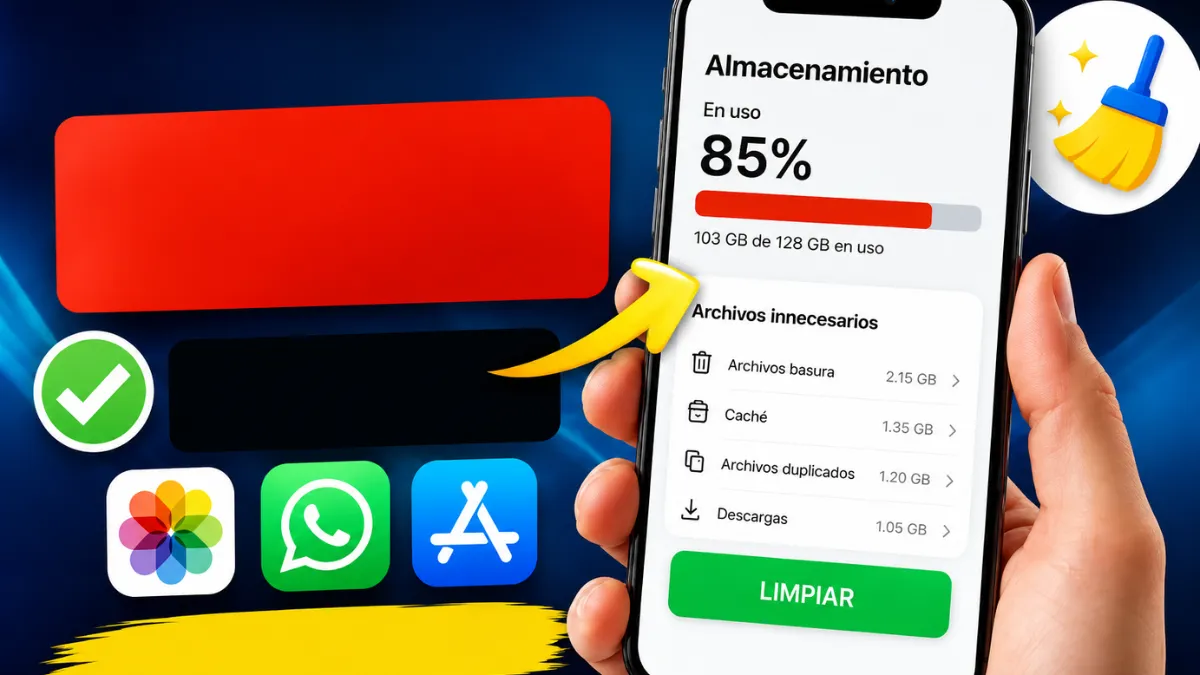
Is your phone displaying the "storage full" message? You're not alone. Millions of users face the same problem every day: their phones become slow, apps crash, WhatsApp stops downloading files, and even taking a photo becomes a hassle. The good news is that you can free up space on your phone without deleting photos, WhatsApp conversations, or important apps.
In this comprehensive guide you will learn the most effective methods to recover storage on Android and iPhone safely, quickly and without losing your personal files.
Why does your phone run out of space so quickly?

- Accumulated temporary files
- Application cache
- Videos downloaded automatically
- Duplicate photos
- Hidden junk files
- System updates
- Social media data
- Invisible folders in WhatsApp and Telegram
- Go to Settings
- Enter Storage
- Choose resource-intensive apps like:
- TikTok
- YouTube
- Press Clear cache
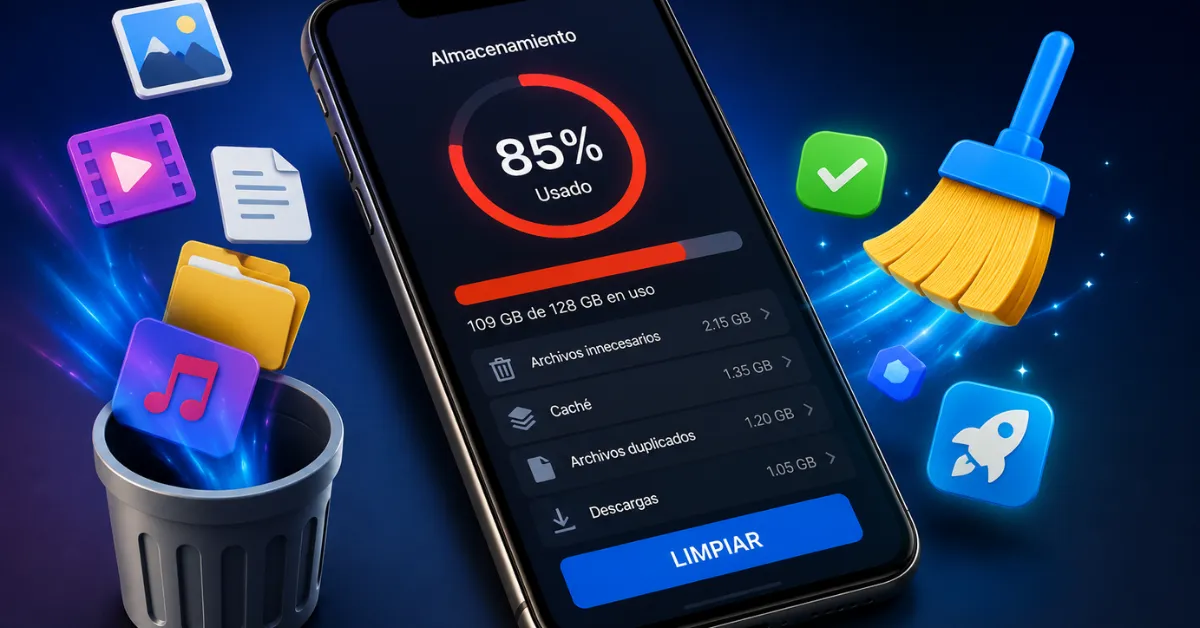
- Go to Settings
- Press General
- Go to iPhone Storage
- Check which apps are taking up the most space
- Delete temporary data or download unused apps
- Open WhatsApp
- Go to Settings
- Go to Storage and Data
- Tap Manage storage
- delete large videos,
- delete files forwarded many times,
- remove duplicate content.
- Configuration
- Storage and data
- Automatic download
- Deactivate:
- photos,
- videos,
- documents.
- Open the Google Files app
- Go clean
- Remove:
- junk files,
- duplicate memes,
- Older APKs,
- repeated captures.
- clear Safari cache,
- delete old downloads,
- clean app files.
- Google Files
- File manager
- DCIM Folder
- Downloads
- Photos
- Videos
- Bigger first
- save images online,
- free up local storage,
- keep your photos safe.
- “Optimize storage”.
- PDFs,
- images,
- documents,
- memes,
- audios.
- Files
- Downloads
- Archives
- Downloads
- storage,
- cache,
- background processes.
- old games,
- duplicate apps,
- apps you haven't opened in months.
- cleans temporary processes,
- free up RAM,
- performance improvement,
- reduces errors.
- speed up the cell phone,
- free up RAM,
- optimize battery.
- They display excessive advertising,
- They consume more resources,
- They can be dangerous.
- Disable automatic downloads
- Upload photos to the cloud
- Clean cache weekly
- Delete unnecessary videos
- Check downloads
- Avoid saving duplicate files
- Keep the system updated
- slow apps,
- camera malfunctioning,
- WhatsApp is not downloading files,
- impossible updates,
- messages from full memory,
- phone frozen.
- 10% to 20% of free storage. If your memory is completely full:
- the system becomes slow,
- The apps are failing,
- warming increases.
- clear cache,
- eliminate trash,
- optimize WhatsApp,
- use cloud storage,
- control automatic downloads.
If your phone is slow, freezes, or displays "memory full" messages, now is the perfect time to perform a smart cleanup and optimize your device.