Best tool to sign PDFs for free from your mobile phone or PC
Sign PDFs for free from your phone or PC without installing any software. Upload your document, add your signature as an image, adjust the size and position,…
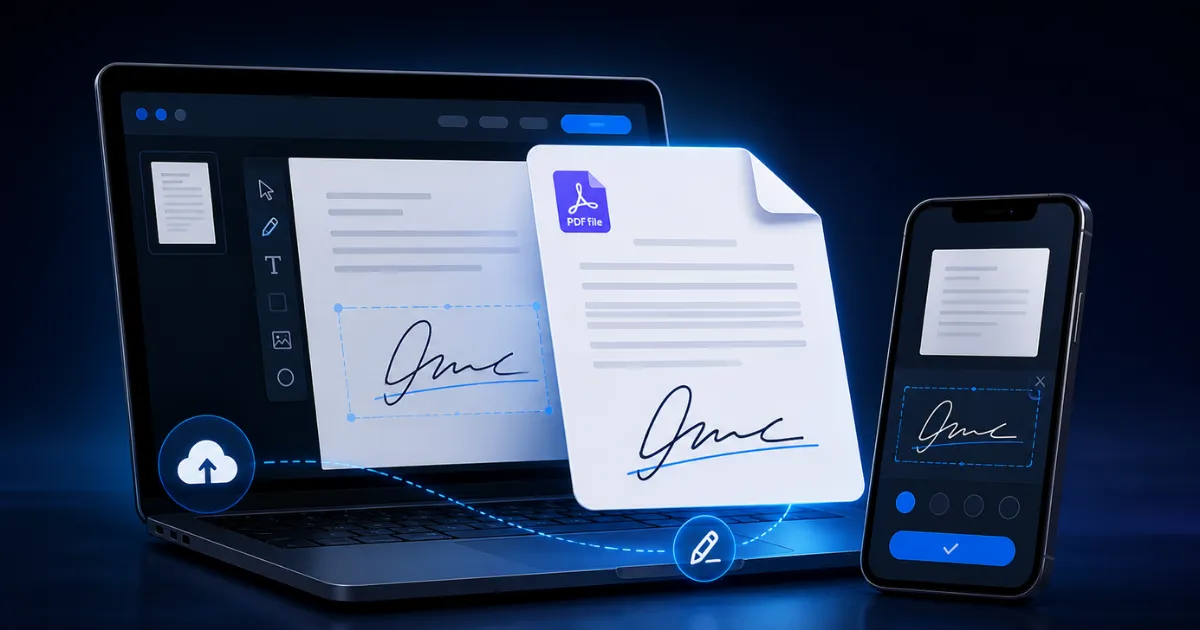
Signing a PDF document shouldn't be complicated anymore. Previously, many people had to print the file, sign it with a pen, take a picture of it, scan it, and send it again. This process not only takes time but also reduces the document's quality and can become a problem when you need to send something urgently.
Today you can do it much faster: using an online tool to sign PDFs for free from your cell phone or computer, without installing programs and without depending on heavy applications.
 Sign PDFs Online for Free in 10 Seconds (No Registration or Programs)
If you need to sign a contract, authorization, letter, form, application, invoice, certificate, or any important document, this tool allows you to upload the PDF, add your signature, and download the signed file in just a few seconds.
The best part is that it works directly from your browser. Whether you're using a phone, tablet, or PC, you can easily, quickly, and effortlessly sign your PDF.
Sign PDFs online for free: a quick solution for urgent documents
More and more procedures are being carried out digitally. Companies, institutions, clients, banks, schools, universities, and online platforms often send PDF documents that require a signature before being returned.
The problem arises when you don't have a printer, scanner, or professional application installed on your computer. In those cases, an online PDF signing tool becomes a practical solution.
With this tool you can add your signature in image format, place it in the correct location on the document, adjust the size, change the opacity, modify the rotation, and download the signed PDF.
This is especially useful when you're away from home, when you only have your cell phone at hand, or when you need to respond to a document immediately.
Why use an online tool to sign PDFs?
The main advantage is speed. You don't have to install programs, create complicated accounts, or learn to use professional software. You only need your PDF and an image of your signature.
It's also a convenient option because it works from different devices. You can sign from a computer if you're working in an office, or from your cell phone if you received the document via WhatsApp, email, or another digital platform.
Another important advantage is that the document retains its original formatting. By working directly on the PDF, the final file maintains the structure, pages, and content as they were before the signature was added.
Furthermore, you can place the signature exactly where it belongs. This is important because many documents have a specific space for signatures, and a good tool should allow you to move, enlarge, reduce, or precisely position the signature.
How to sign a PDF for free from your mobile phone
Signing a PDF from your phone is very easy . First, you need to have the PDF document saved on your phone. It could be in your downloads, WhatsApp, Google Drive, your email, or any folder on your device.
Next, access the tool from your mobile browser and select the PDF file. Then, upload an image of your signature. This image can be a photo of your signature on white paper, or a signature previously saved in PNG or JPG format.
Once the signature is uploaded, you can adjust it on the document. Resize it, move it to the correct position, and check that it looks good before downloading the final file.
When everything is ready, just download the signed PDF and send it via email, WhatsApp, or whatever platform you need.
This process eliminates the need for printing, scanning, or relying on a computer. Whether you're out and about, at work, traveling, or far from a printer, you can handle it directly from your phone.
How to sign a PDF for free from your PC
The process is also very simple from a computer. Access the online tool, select the PDF from your files, and upload your signature image.
The advantage of doing it from a PC is that you can work with a larger screen, allowing for more precise placement of the signature. This can be useful for long documents, multi-page contracts, or files where the signature area is small.
After adding your signature, check the size, position, opacity, and rotation. When the result looks correct, download the signed PDF to your computer.
The final file is ready to be sent by email, uploaded to a platform, or saved as a backup.
What documents can you sign with this tool?
This tool can be used to sign many types of PDF documents. You can use it for contracts, authorization letters, applications, forms, certificates, receipts, employment documents, academic documents, business agreements, personal authorizations, and administrative files.
It can also help if you have a small business, work as a freelancer, or need to send signed documents frequently.
For example, if a client sends you a contract to approve a service, you can sign it online without printing anything. If you need to send an authorization to an institution, you can add your signature from your phone. If you work with digital documents every day, this tool can save you a lot of time. The idea is that anyone can sign a PDF without any technical knowledge.
Advantages of signing PDFs online without installing software
One of the biggest advantages is that you don't need to download any additional applications. Often, PDF editing programs are resource-intensive, have limited features, or require subscriptions for basic functions.
With an online tool, the process is more straightforward. You log in, upload the document, add the signature, and download the result.
You also avoid filling your device with apps you might only use once. This is especially useful on phones with limited storage or on computers where you don't want to install unnecessary software.
Furthermore, being an online tool, you can use it from various systems: Windows, Android, macOS, Linux, iPhone, or tablet. As long as you have a browser, you can sign the PDF.
Difference between signing a PDF with an image and a certified digital signature
It's important to clarify something: adding an image signature to a PDF is not always the same as a certified digital signature. An image signature allows you to visually place your handwritten signature on a document. It's very useful for simple authorizations, forms, letters, internal documents, and procedures where only a visible signature is needed.
In contrast, a certified digital signature typically uses electronic certificates and more advanced legal validation systems. This type of signature is used in official processes, specific contracts, or procedures that require cryptographic verification.
For most everyday uses, adding a visible signature to the PDF is sufficient. However, if the document requires a digital signature certified by an authorized entity, you should check the requirements before sending it.
Therefore, this tool is ideal for quickly signing documents when you need to place your visible signature on a PDF.
Tips to make your signature look better in the PDF
For a more professional result, it's best to use a clear image of your signature. You can sign on a white sheet of paper, take a photo in good lighting, and avoid harsh shadows.
It's also advisable to crop the image so that only the signature appears and not too much background around it. If the signature has a white background, you can use ink style options to make it look cleaner within the document.
Size matters, too. A signature that's too large can look unprofessional, while one that's too small can be difficult to read. Ideally, it should fit the available space on the document.
Opacity can help your signature blend better with the PDF. For a more natural effect, you can slightly reduce the intensity. If you need a bolder signature, you can leave it at 100%.
Rotation can also be useful if you want the signature to look more natural or if the document space is slightly slanted.
Sign PDFs from your mobile phone: ideal for quick procedures
Many people receive important documents directly on their cell phones. This could be a contract sent via WhatsApp, an application by email, or a file downloaded from a platform.
In those cases, having a tool to sign PDFs from your phone is a huge advantage. You don't have to wait until you get home, find a computer, or ask someone else for help.
Simply open the link, upload the file, add your signature, and download the signed PDF. This can save you time and help you respond to urgent documents in minutes.
Furthermore, since it runs in a browser, you're not dependent on a specific application. You can use it from Chrome, Safari, Edge, or any other compatible browser.
Sign PDFs from your PC: perfect for work and office
If you work with documents every day, signing PDFs from your PC can be more convenient. The larger screen allows you to review the file more thoroughly, position the signature in more detail, and verify that everything is correct before downloading.
This is useful for offices, businesses, freelancers, students, accountants, lawyers, administrative assistants, teachers, and anyone who handles digital documents.
It's also ideal if you need to sign multiple files or if you want to keep an organized copy on your computer.
A simple, fast tool focused on what you need
Not everyone needs a full-fledged PDF editor with dozens of features. Sometimes you just need one thing: to quickly sign a document and send it.
That's why a tool specifically designed for signing PDFs can be much more practical. It doesn't distract you with unnecessary options and allows you to complete the process directly.
You upload the PDF, add your signature, adjust the details, and download. That's it. That simplicity is precisely what makes a tool useful for everyday users, students, workers, entrepreneurs, and professionals.
Is registration required to sign a PDF?
You don't need to create an account to use the tool. You can log in directly, upload your document, and sign it. This makes the process much faster, especially when you're in a hurry.
Not having to register also avoids unnecessary steps. Many online tools ask for email, password, or paid plans before allowing you to download the final file. Here, however, the goal is for you to be able to sign your PDF easily and without wasting time.
When to use this tool to sign PDFs
You can use it when you need to send a signed document by mail, respond to a contract, complete an authorization, sign a letter, approve a form, submit an application, or add your signature to any PDF.
It's also useful when you don't have a printer, when you're using your phone, when you need to avoid installations, or when you want to keep the document in digital format from start to finish. Instead of printing and scanning, you can do everything from the same screen.
Common mistakes when signing a PDF and how to avoid them
One of the most common mistakes is using a blurry photo of the signature. If the image isn't clear, the final result won't look professional either. Try to take the photo in good lighting and focus properly.
Another mistake is placing the signature in the wrong position. Before downloading the PDF, carefully review the page and make sure the signature is in the correct place.
It's also common to leave the signature too large. Adjust the size so it looks natural and proportional to the document.
Finally, double-check that you are signing the correct page. Some documents have multiple pages, and the signature area may be at the end. Make sure you sign where it belongs.
Conclusion: The easiest way to sign PDFs for free from your mobile phone or PC
Signing a PDF no longer has to be a slow process. With an online tool, you can add your signature to a document from your phone or computer, without installing any software or complications.
This solution is ideal for those who need to sign documents quickly, keep the file in digital format, and send it in a few minutes.
If you're looking for an easy way to sign PDFs online for free, this tool lets you do it practically, quickly, and easily from any device.